
Jobylon Integration
Getting Started
Section titled “Getting Started”This guide will walk you through setting up the HI Assessments integration with Jobylon ATS. The process involves generating an integration token, working with Jobylon’s team to enable the integration, and configuring assessment automation in your recruitment pipeline.
Step 1: Generate Your Integration Token
Section titled “Step 1: Generate Your Integration Token”- Log in to your HI Assessments dashboard
- Navigate to Settings → Integrations
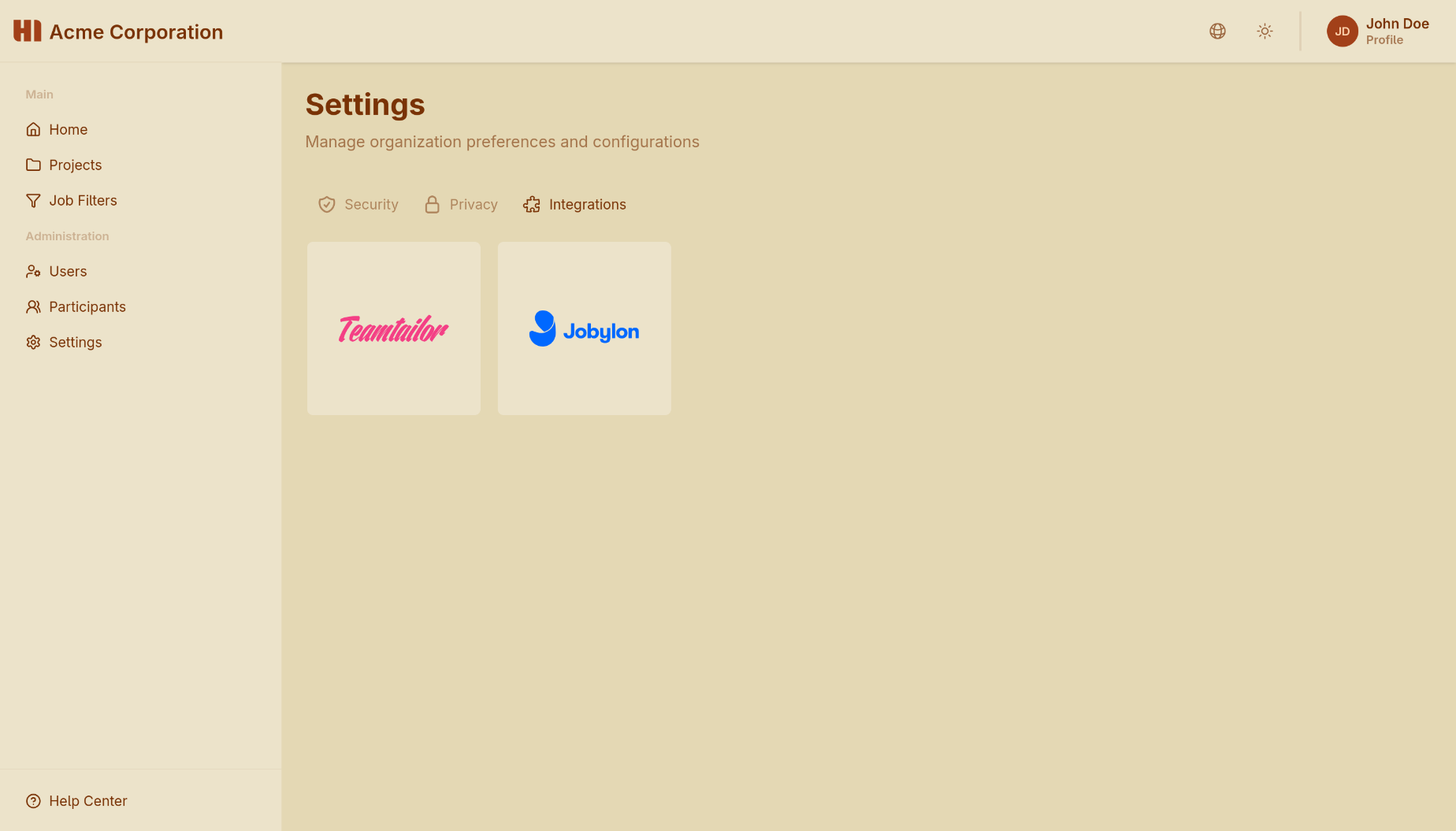
- Find and click on Jobylon
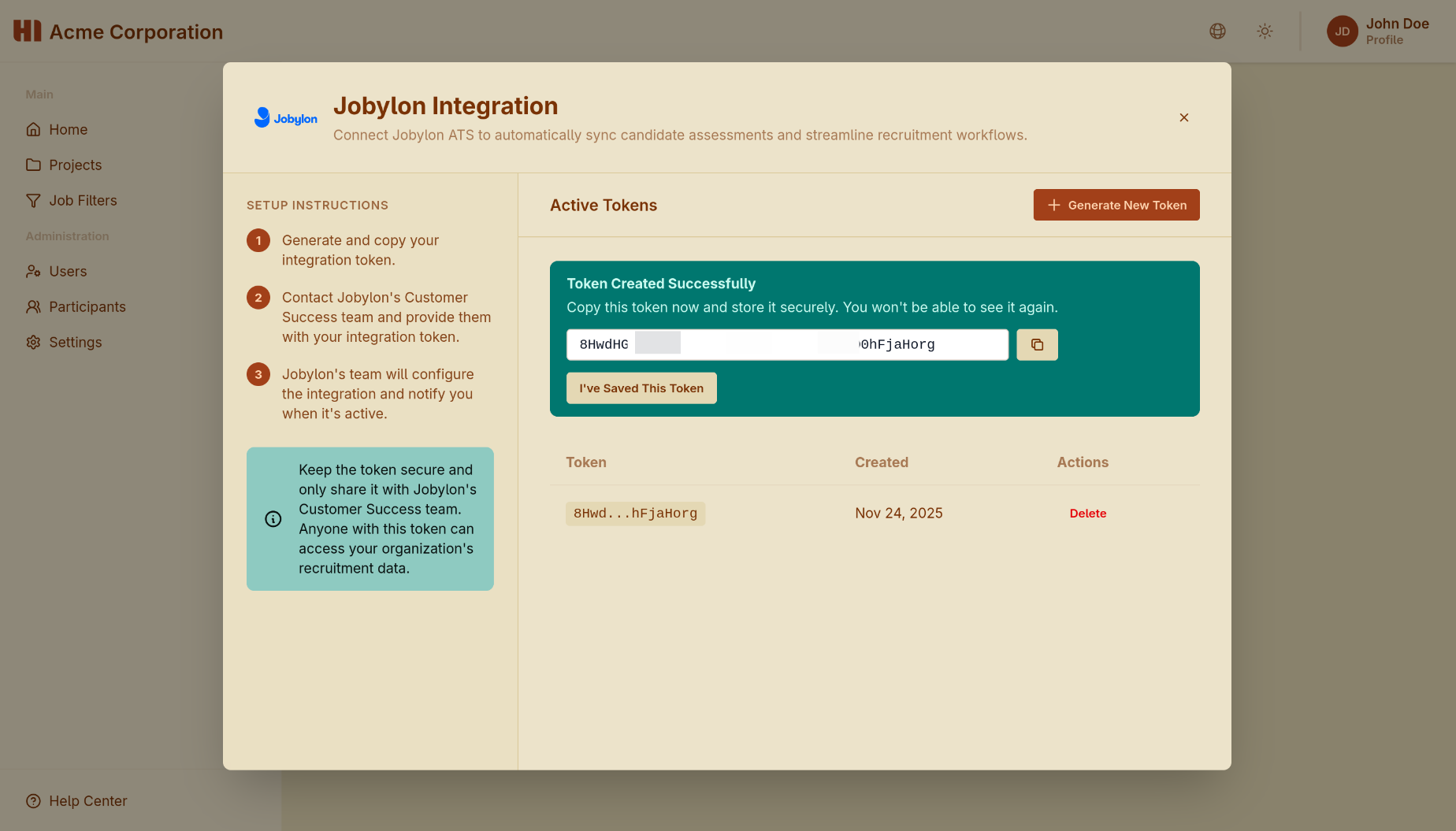
- Click Generate New Token
- Important: Copy this token immediately and store it somewhere safe—you won’t be able to see it again
Step 2: Enable Integration with Jobylon
Section titled “Step 2: Enable Integration with Jobylon”Before you can use the integration, Jobylon’s Customer Success team needs to enable it for your organization.
- Contact Jobylon’s Customer Success team through your usual Jobylon support channels
- Provide them with the integration token you generated in Step 1
- Wait for confirmation that the integration has been activated
Once Jobylon confirms the integration is active, you can proceed to configure it for your jobs.
Step 3: Configure HI Assessments for Your Job
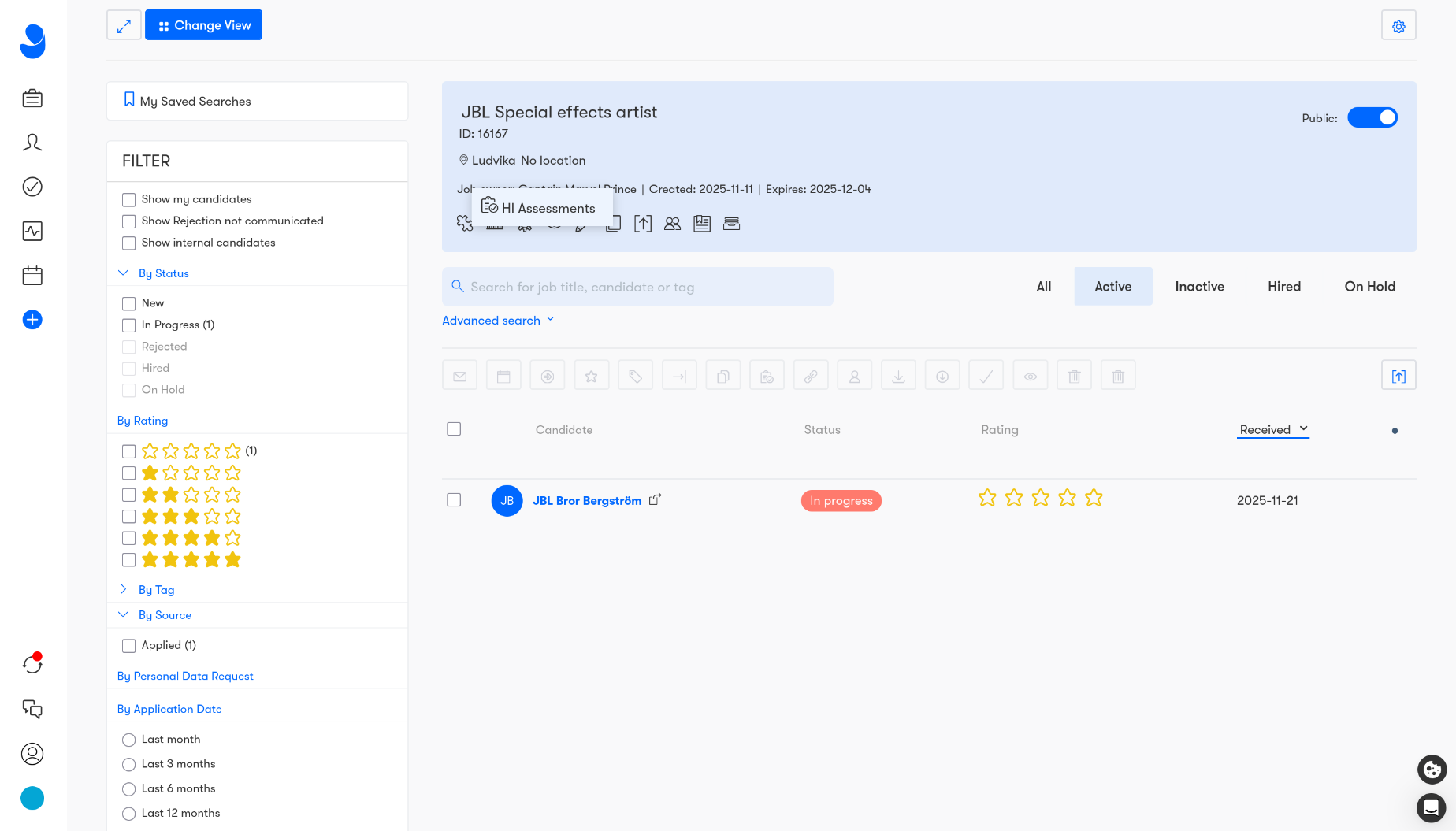
Section titled “Step 3: Configure HI Assessments for Your Job”- In Jobylon, open the job where you want to add assessments
- Hover over the integrations icon on the job listing
- Click on HI Assessments
- Configure the integration settings:
Job Filter - Select the job filter for this position. Job filters determine:
- Which assessments to send (personality test, logical reasoning, or both)
- How to weight different scales
- Match score calculation for the role
Language - Choose the language for email communications with candidates
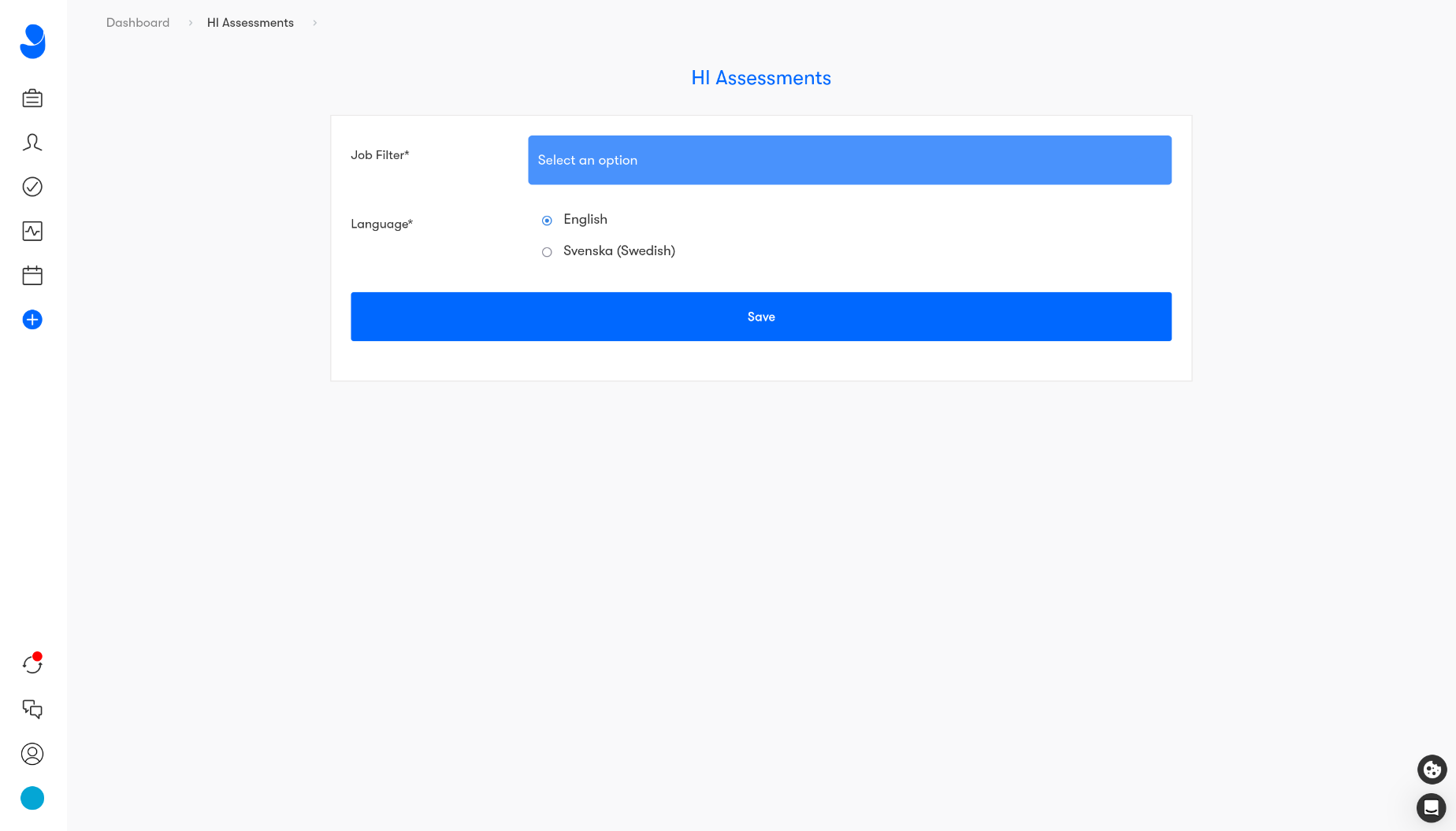
- Click Save to save your configuration
Step 4: Set Up Pipeline Actions
Section titled “Step 4: Set Up Pipeline Actions”Now you’ll configure when candidates should receive assessments by setting up a pipeline action.
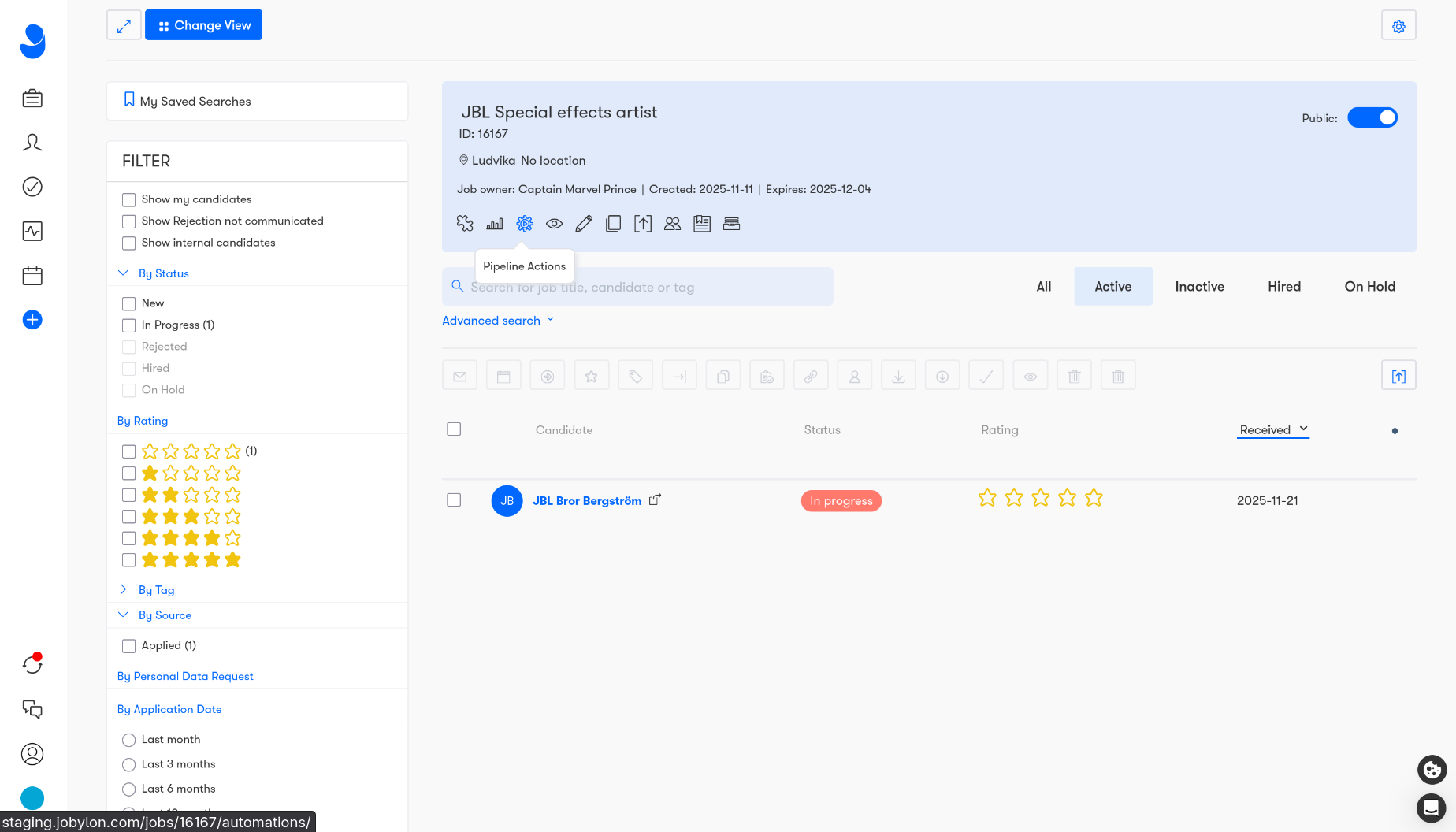
- Go back to your job and click on Pipeline Actions
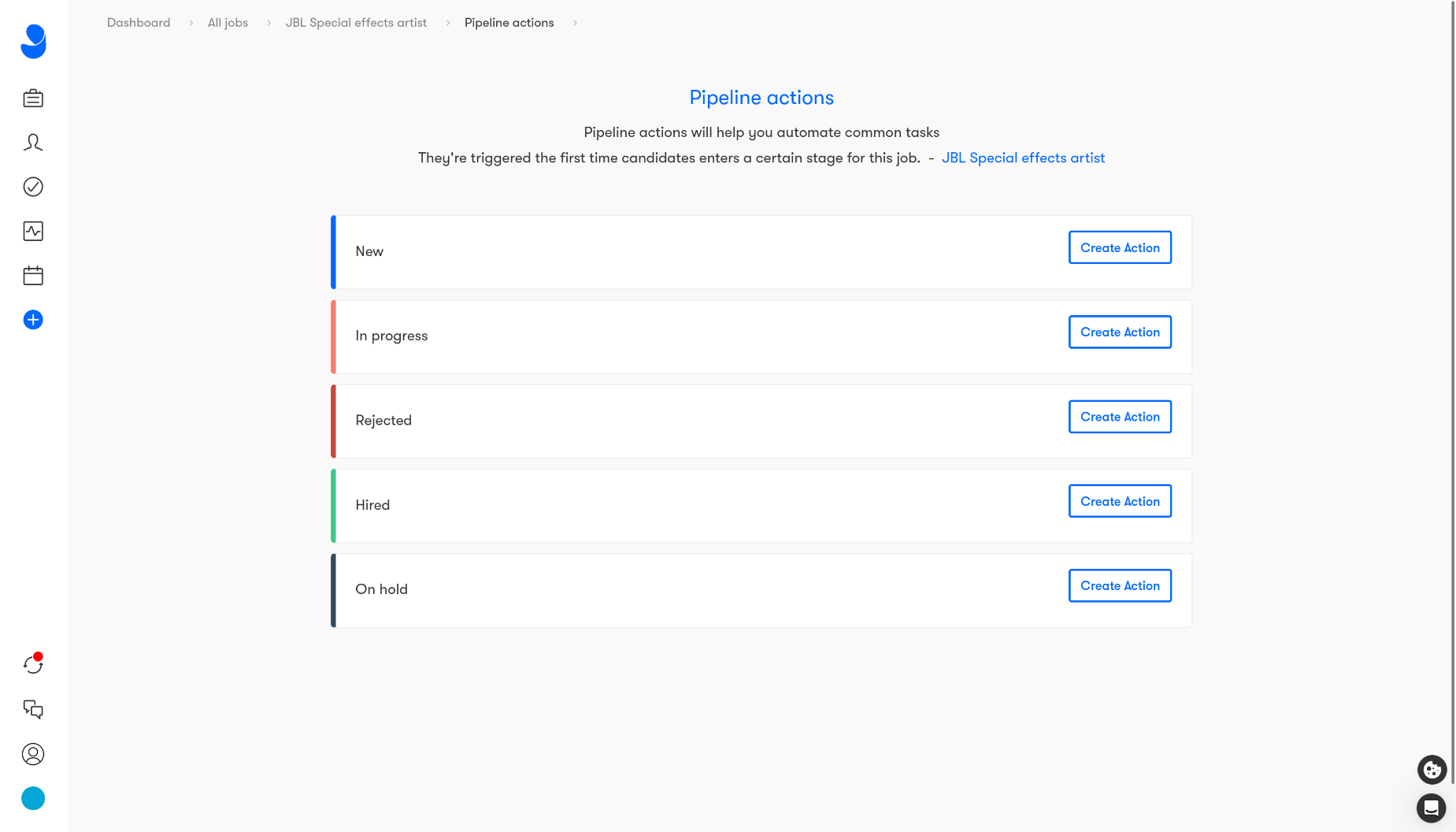
- You’ll see your pipeline stages. Choose the stage where candidates should receive assessments and click Create Action
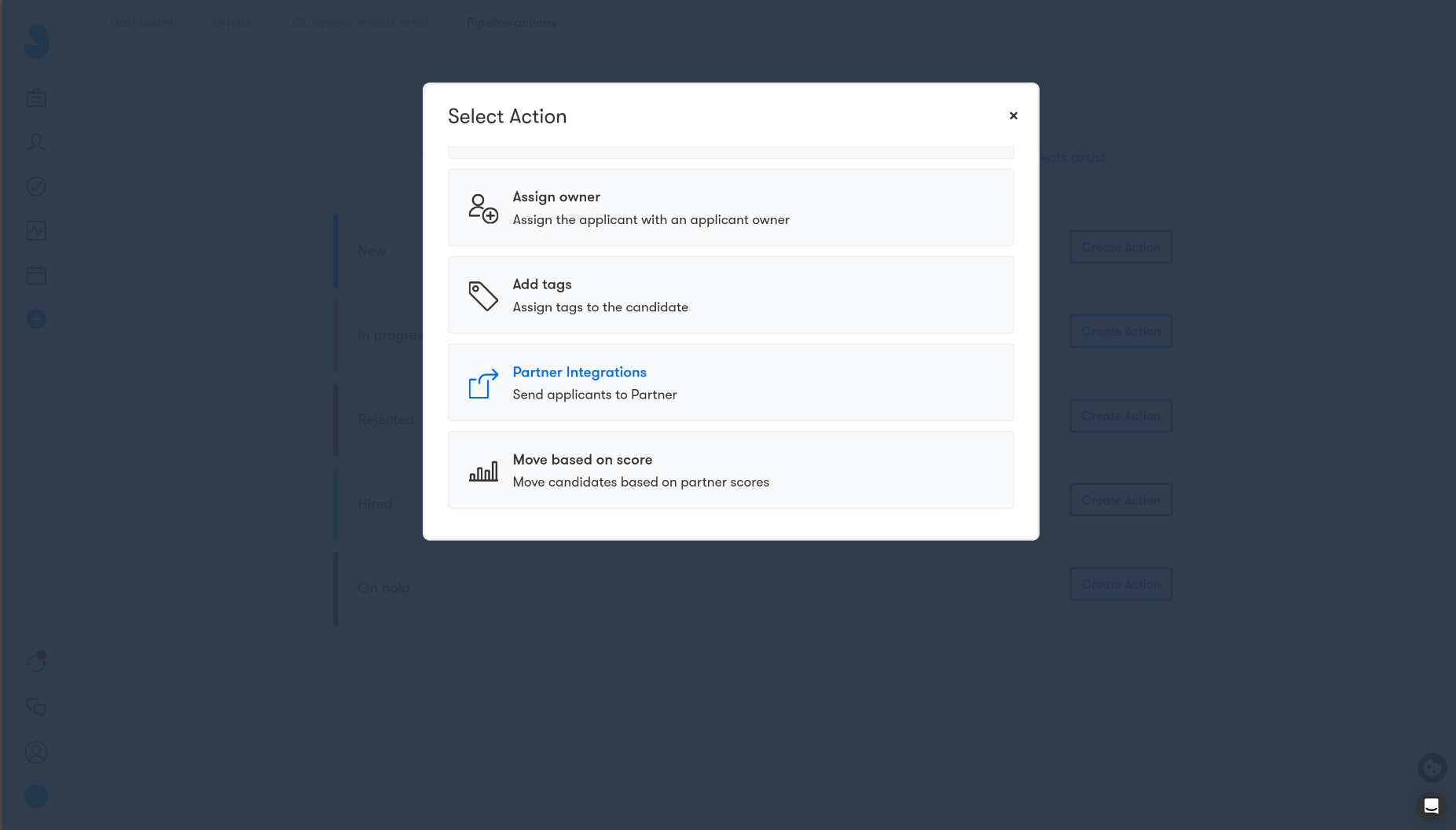
- In the Select Action modal, choose Partner Integrations
- Configure the pipeline action:
Candidate type - Select which candidate types should trigger the assessment (Applied, Uploaded, Recommended, Imported, Sourced)
Conditions - Add any additional conditions if needed
Select Integration - Choose HI Assessments from the dropdown
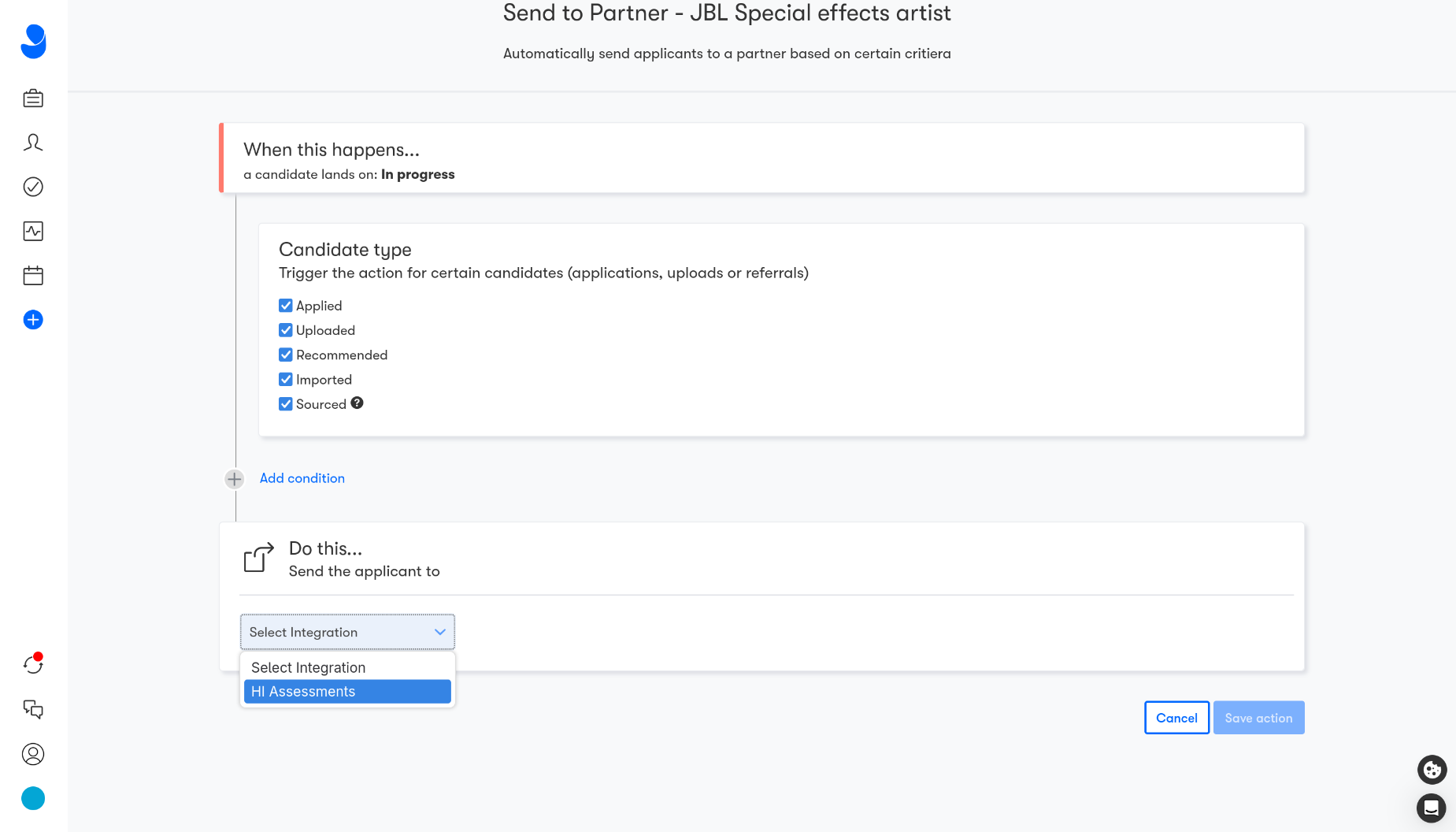
- Click Save action to complete the setup
Understanding the Results
Section titled “Understanding the Results”When candidates complete their assessment, the results automatically sync back to Jobylon and appear on the candidate’s profile.
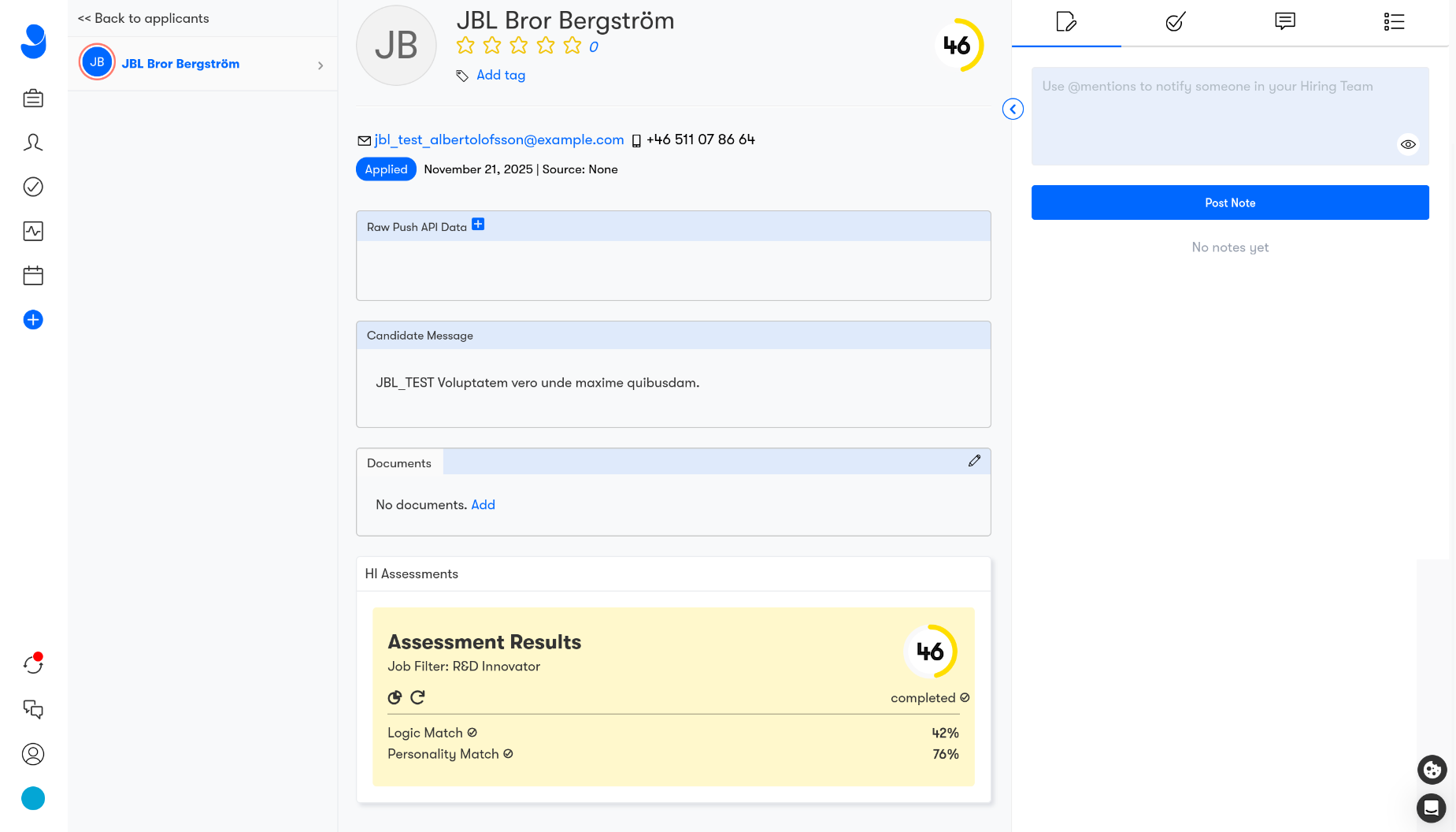
You’ll see:
- Overall match score (0-100)
- Logic Match and Personality Match scores
- The Job Filter used for evaluation
Click on the assessment results to access detailed reports including:
- Personality insights based on the Big Five model
- Cognitive ability analysis
- Role-specific recommendations
- Suggested interview questions
- Strengths and development areas
Support
Section titled “Support”If you need help with the integration:
HI Assessments: support@hiassessments.com
Jobylon: Access support through your Jobylon dashboard