
Teamtailor Integration
Getting Started
Section titled “Getting Started”Watch this complete walkthrough of the integration process, or follow the step-by-step instructions below:
Step 1: Generate Your Integration Token
Section titled “Step 1: Generate Your Integration Token”- Log in to your HI Assessments dashboard
- Navigate to Settings → Integrations
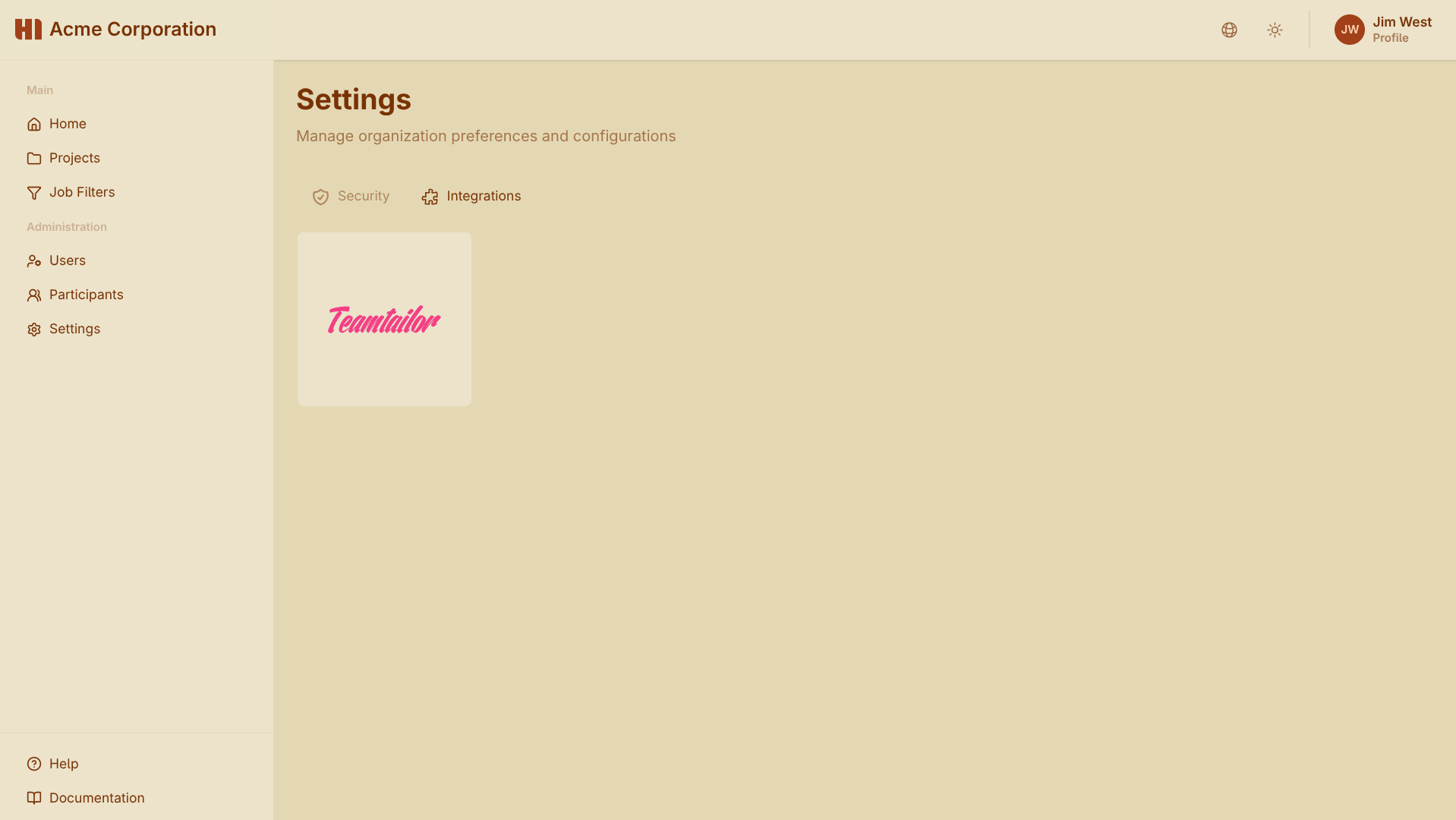
- Find and click on Teamtailor
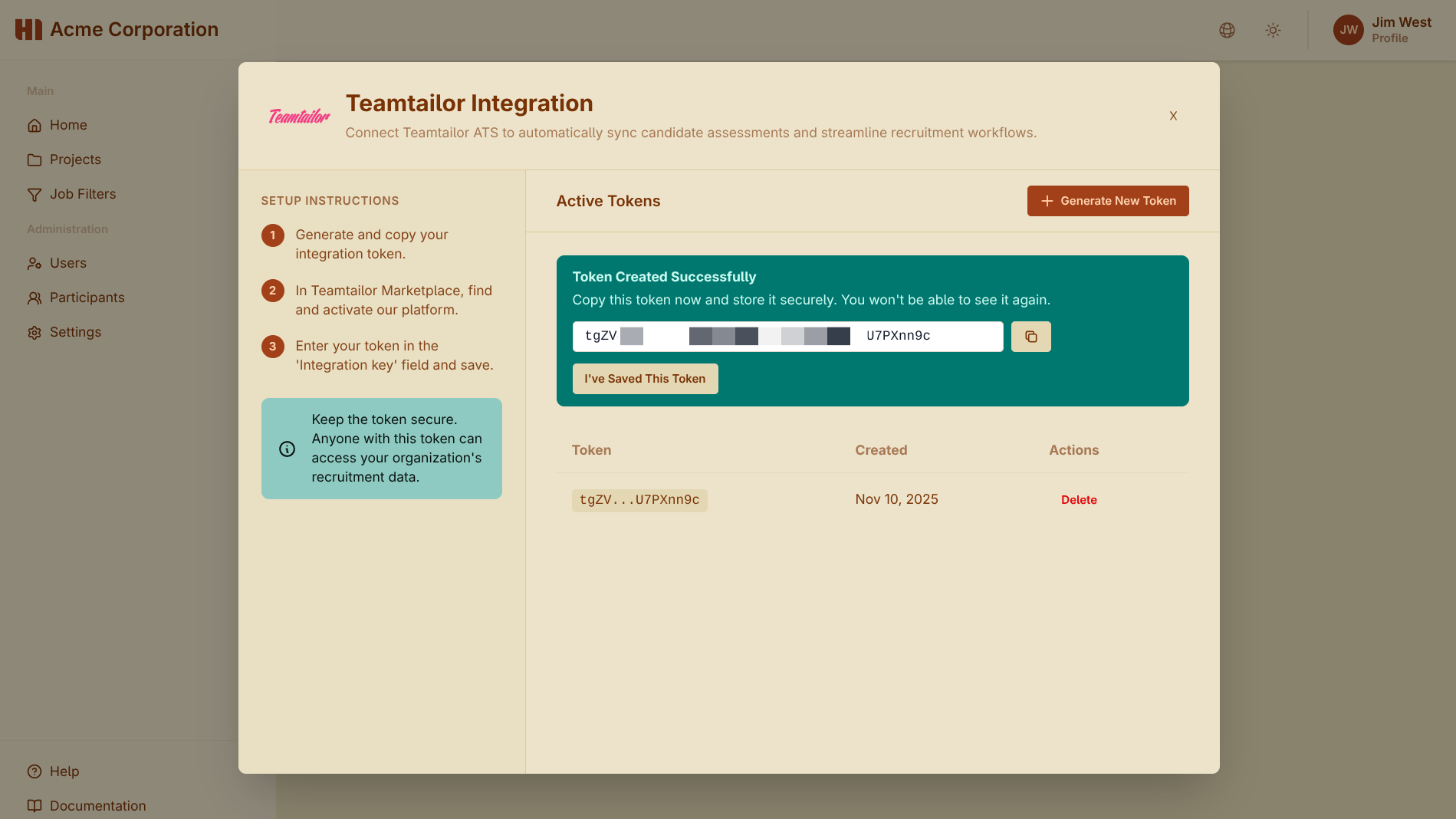
- Click Generate New Token
- Important: Copy this token immediately and store it somewhere safe—you won’t be able to see it again
Step 2: Activate HI Assessments in Teamtailor Marketplace
Section titled “Step 2: Activate HI Assessments in Teamtailor Marketplace”- Log in to Teamtailor and open the Marketplace
- Search for HI Assessments or browse the Assessment category
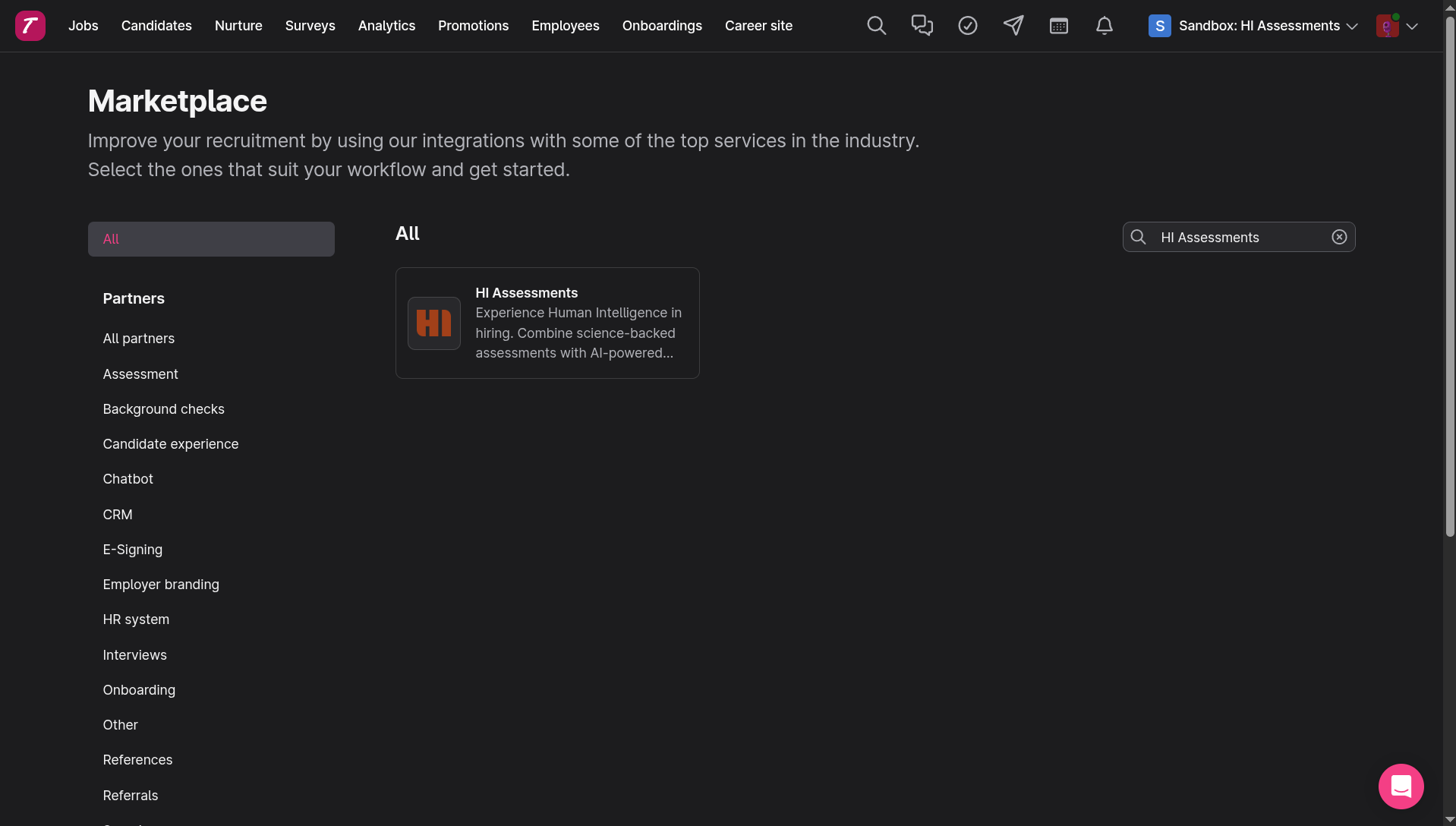
- Click Activate on the HI Assessments card
- Enter your integration token from Step 1
- Click Update to save
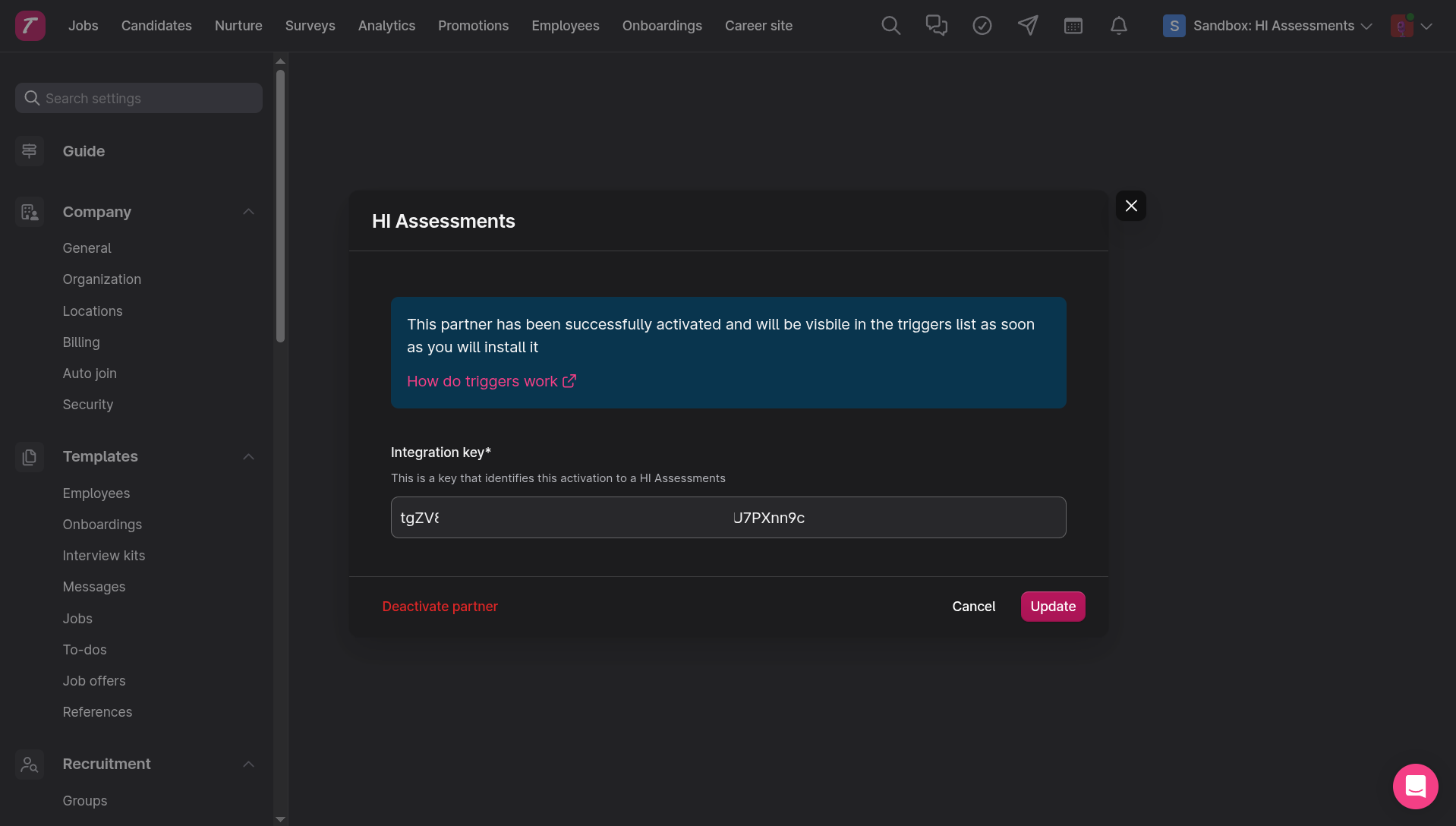
You’ll see a confirmation that the integration has been successfully activated.
Step 3: Set Up Assessment Triggers
Section titled “Step 3: Set Up Assessment Triggers”- Open the job where you want to add assessments
- Choose the stage where candidates should receive assessments
- Click + Add trigger on that stage
- Select Send to HI Assessments from the dropdown
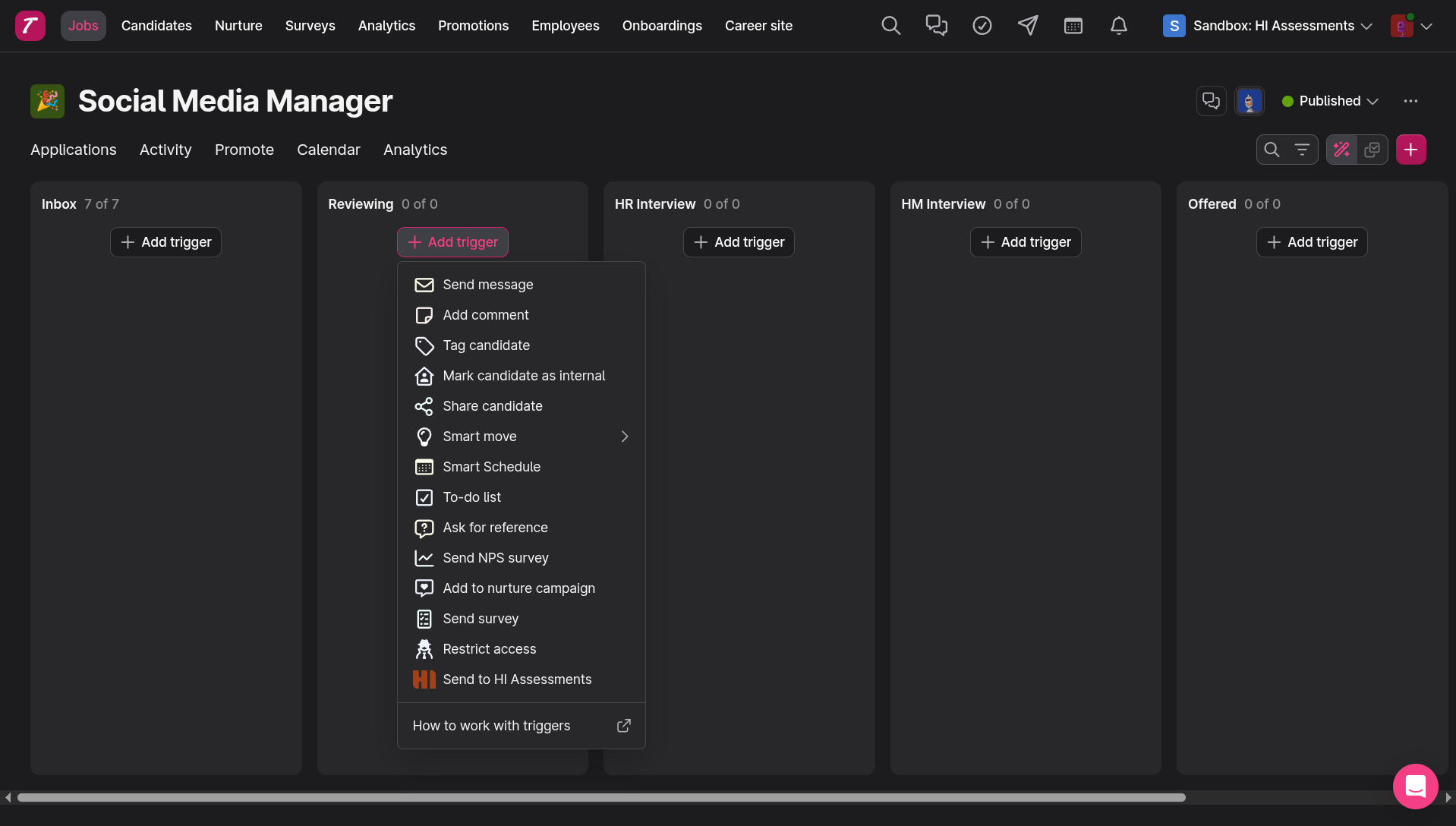
Step 4: Configure Your Assessment
Section titled “Step 4: Configure Your Assessment”Configure the assessment settings for this role:
Job Filter Select the job filter for this position. Job filters determine:
- Which assessments to send (personality test, logical reasoning, or both)
- How to weight different scales
- Match score calculation for the role
Language Choose the language for email communications with candidates
Evaluation Mapping Check “Include assessment in evaluation of Job match scores” to sync results with your Teamtailor scorecard. This provides three metrics:
- Job Filter Match: Overall compatibility with the role
- Personality Match: Big Five personality assessment results
- Logic Match: Cognitive ability scores
Automation Options
- Enable “Move candidate when complete” to automatically progress candidates
- Set score thresholds for automatic advancement or rejection
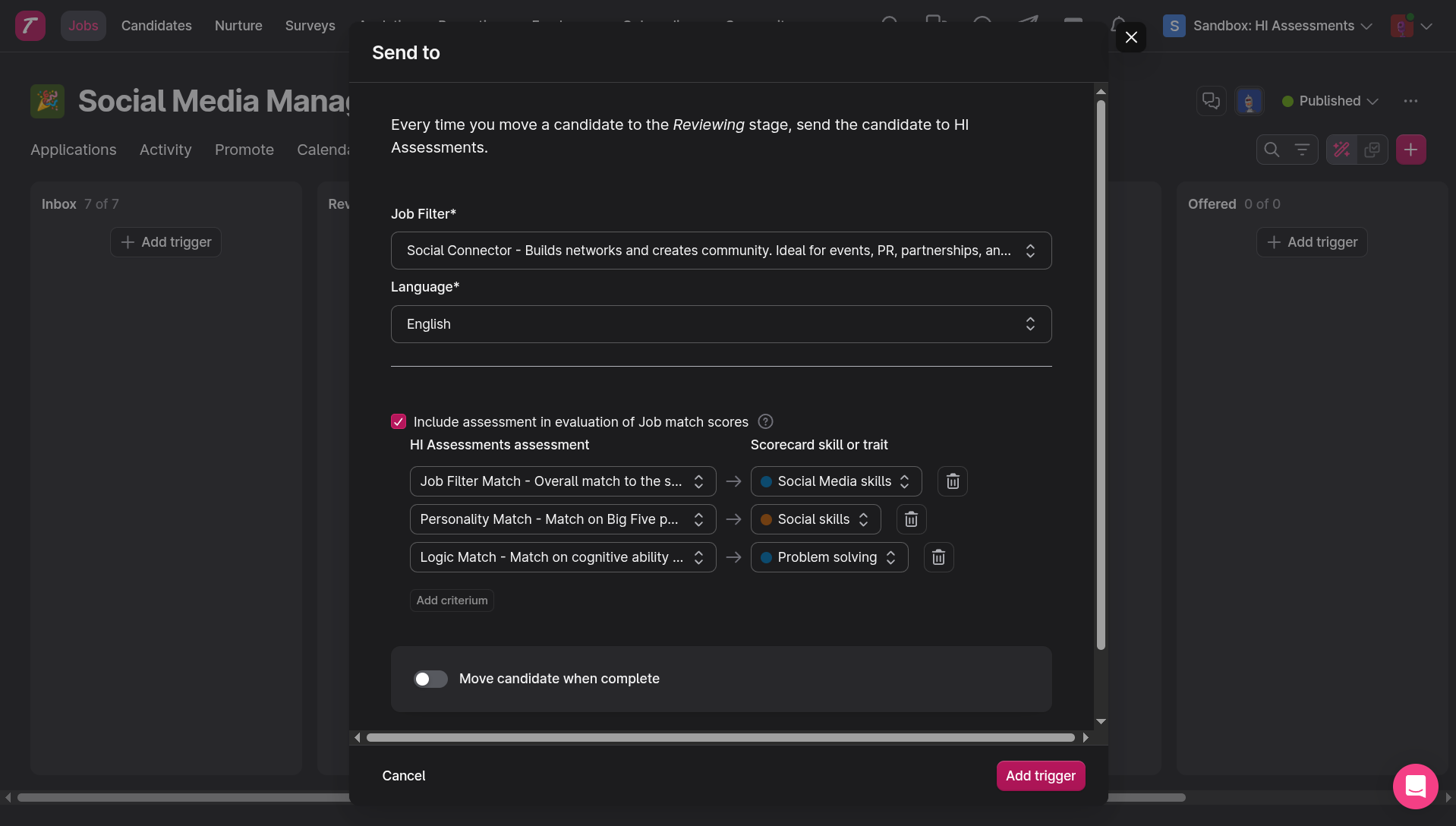
Click Add trigger to save the configuration.
Managing the Assessment Process
Section titled “Managing the Assessment Process”What Happens Next
Section titled “What Happens Next”When candidates reach your assessment stage:
- They automatically receive an email invitation from HI Assessments
- Results and scores appear in Teamtailor once the assessment is completed
Tip: Add a “Send message” trigger before the assessment trigger with a 5-10 minute delay to inform candidates about the upcoming assessment.
Understanding the Results
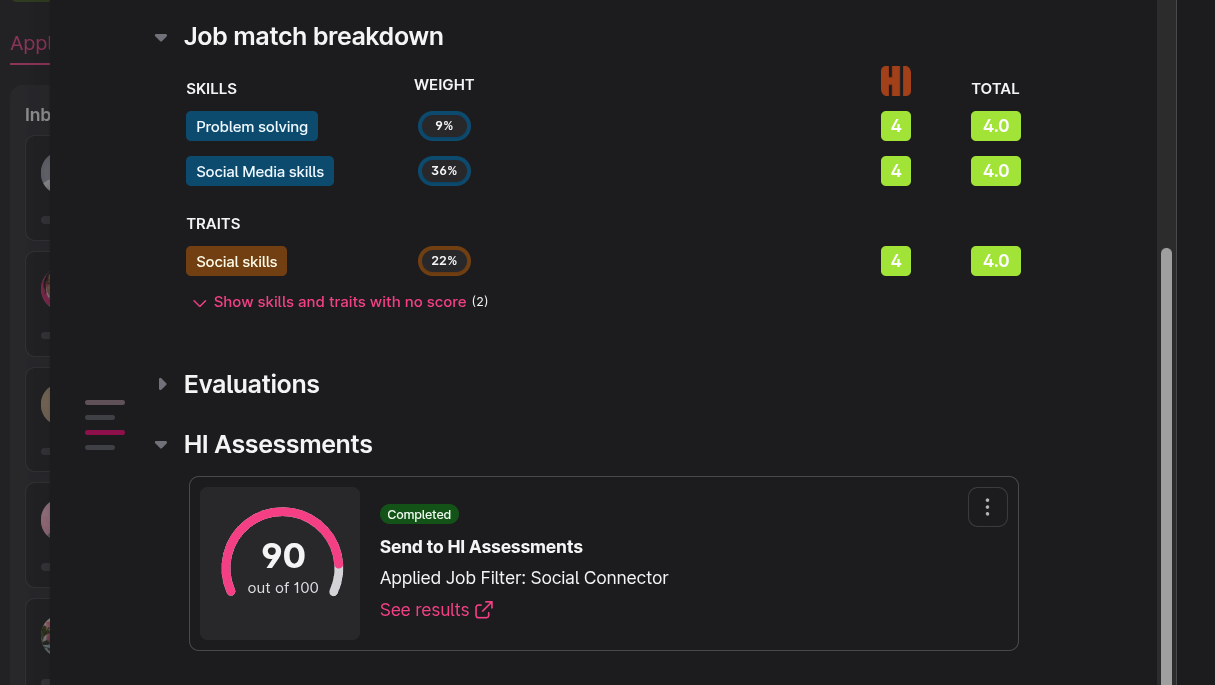
Section titled “Understanding the Results”When a candidate completes their assessment:
- The status on their card changes from “Sent” to “Completed”
- You’ll see their match score (0-100)
- Click See results to access detailed reports including:
- Personality insights based on the Big Five model
- Cognitive ability analysis
- Role-specific recommendations
- Suggested interview questions
- Strengths and development areas
Support
Section titled “Support”If you need help with the integration:
HI Assessments: support@hiassessments.com
Teamtailor: Access support through your Teamtailor dashboard